
Led Control Panel Example
This example demonstrates a simple program execution panel in EcuBus-Pro, including status indication and message display.
Features Demonstrated
Program Execution Control
- A "Start" button toggles the execution of a simulated program.
- When started, the program runs for a random time (2-5 seconds) and then fails automatically.
Status Indication
- Two large LED indicators:
- Red LED: Lights up when the program fails.
- Blue LED: Lights up when the program succeeds (not used in this demo, but present for extension).
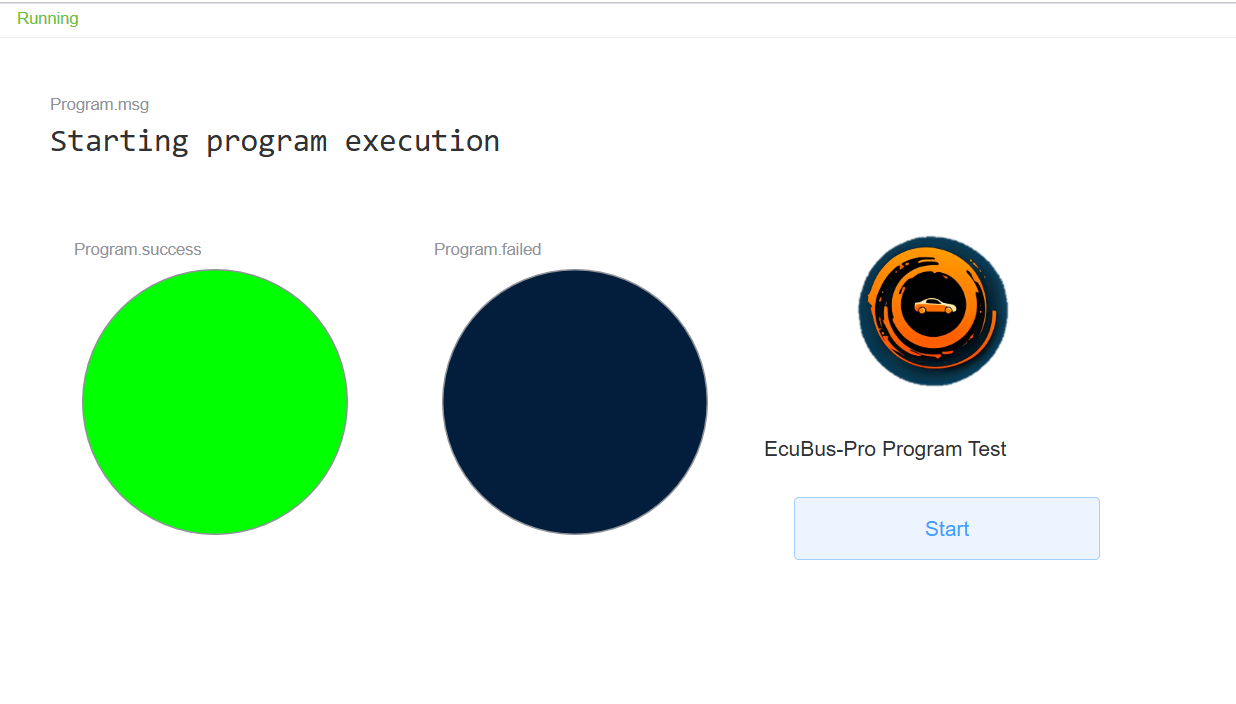
- Status message area displays the current state (e.g., "Starting program execution", "Program failed after random time", "Manual stop of program execution").
- Two large LED indicators:
Panel Layout
- Includes a logo and title for easy identification.
- All controls and indicators are arranged in a grid for clarity.
Variables Used
| Variable Name | Type | Purpose / Description |
|---|---|---|
| Program.run | number | Controls the start/stop of the program (triggered by the Start button). |
| Program.success | number | Indicates if the program succeeded (set to 1 on start, 0 on failure/stop). |
| Program.failed | number | Indicates if the program failed (set to 1 on failure, 0 otherwise). |
| Program.msg | string | Displays the current status message in the panel. |
More information about variables can be found in the Variable section.
How It Works
- Press the Start button to begin the program.
- The message area will show "Starting program execution".
- After a random interval (2-5 seconds), the program will simulate a failure:
- The message updates to "Program failed after random time".
- The red LED lights up.
- The Start button resets.
- You can manually stop the program by toggling the Start button off, which will show "Manual stop of program execution".
Example Panel
The panel is stored in panel.ecb. The screenshot shows it running right after Start is pressed.
Code Overview
- panel.ecb: Stores the project, variables, and the free-layout panel with its LEDs, button, and message display.
- program.ts: Handles the logic for starting, stopping, and simulating program failure.
typescript
import { setVar } from 'ECB'
let timer: NodeJS.Timeout
Util.OnVar('Program.run', async (args) => {
  if (args.value == 1) {
    setVar('Program.success', 1)
    setVar('Program.failed', 0)
    setVar('Program.msg', 'Starting program execution')
    timer = setTimeout(async () => {
      setVar('Program.msg', 'Program failed after random time')
      setVar('Program.failed', 1)
      setVar('Program.success', 0)
      setVar('Program.run', 0)
    }, randomTime)
  } else {
    setVar('Program.msg', 'Manual stop of program execution')
    setVar('Program.success', 0)
    setVar('Program.failed', 0)
    clearTimeout(timer)
  }
})
const randomTime = Math.floor(Math.random() * (5000 - 2000 + 1)) + 2000