Use External Packages
Since EcuBus-Pro script is based on Node.js, you can use any Node.js package in your script. There are two ways to install packages:
Method 1: Using Package Manager Interface
When using a project for the first time, you need to initialize the package.json file before installing packages.
EcuBus-Pro provides a graphical package manager interface for easy installation, management, and uninstallation of packages.
For new projects, you'll see a message "No package.json found" and an "Initialize package.json" button. Click this button to create a new package.json file.
Click on the "Packages" option in the left navigation bar of the main interface
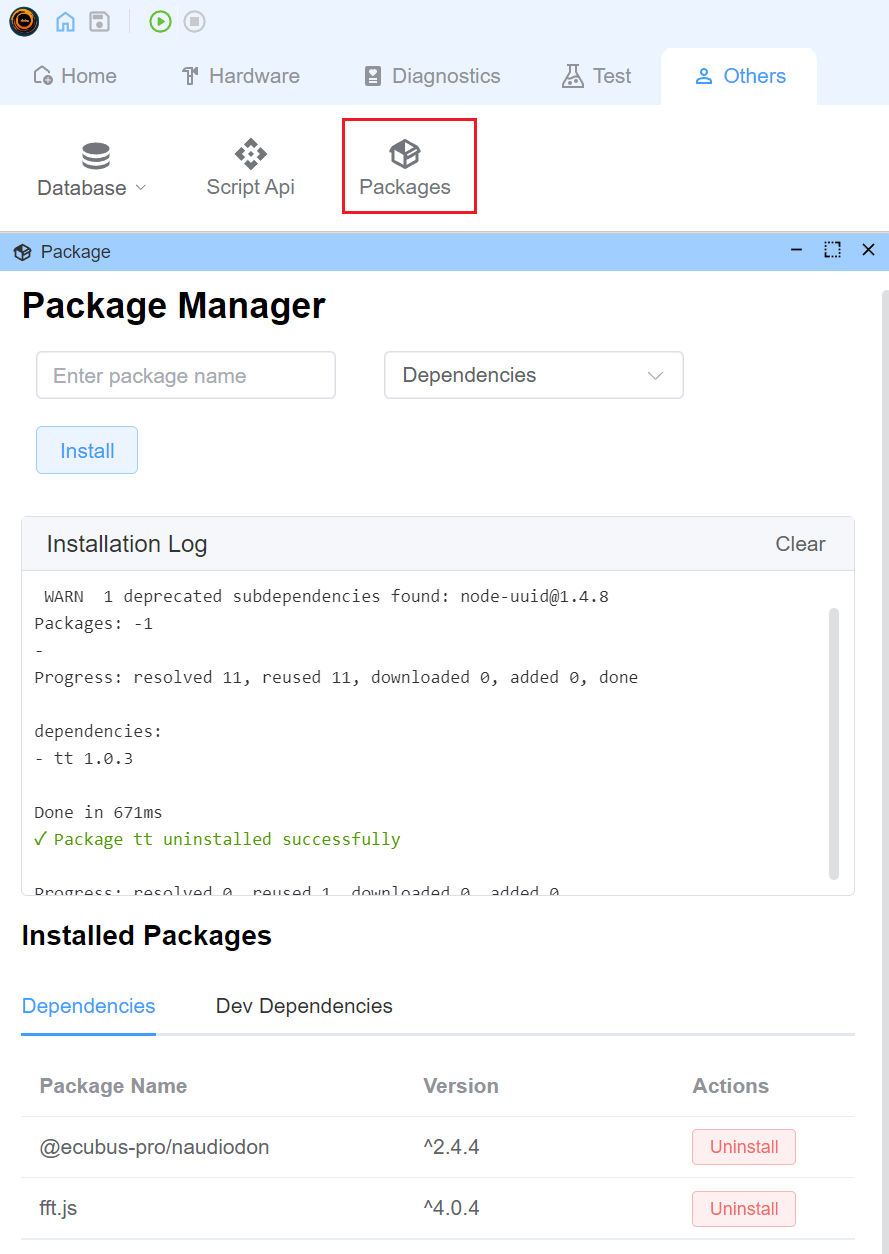
In the Package Manager interface:
- Enter the name of the package you want to install
- Select the installation type (Dependencies or Dev Dependencies)
- Click the "Install" button
You can view and manage installed packages in the "Installed Packages" section at the bottom
Method 2: Using EcuBus-Pro CLI
You can also install packages using the pnpm command in the EcuBus-Pro CLI. See EcuBus-Pro CLI for more details.
Install via CLI
Install the serialport package in your project root directory.
ecb_cli pnpm install serialport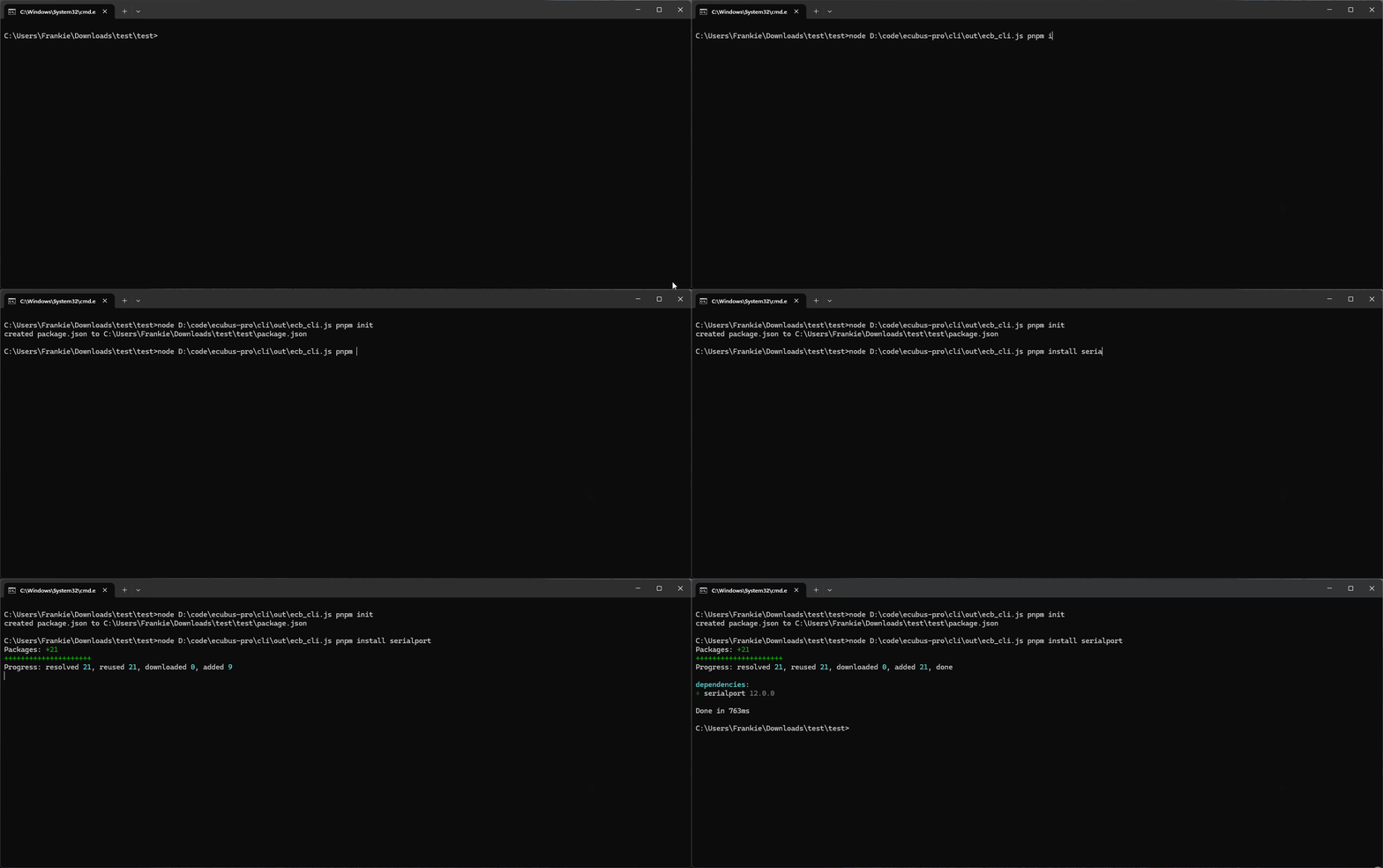
Usage Example
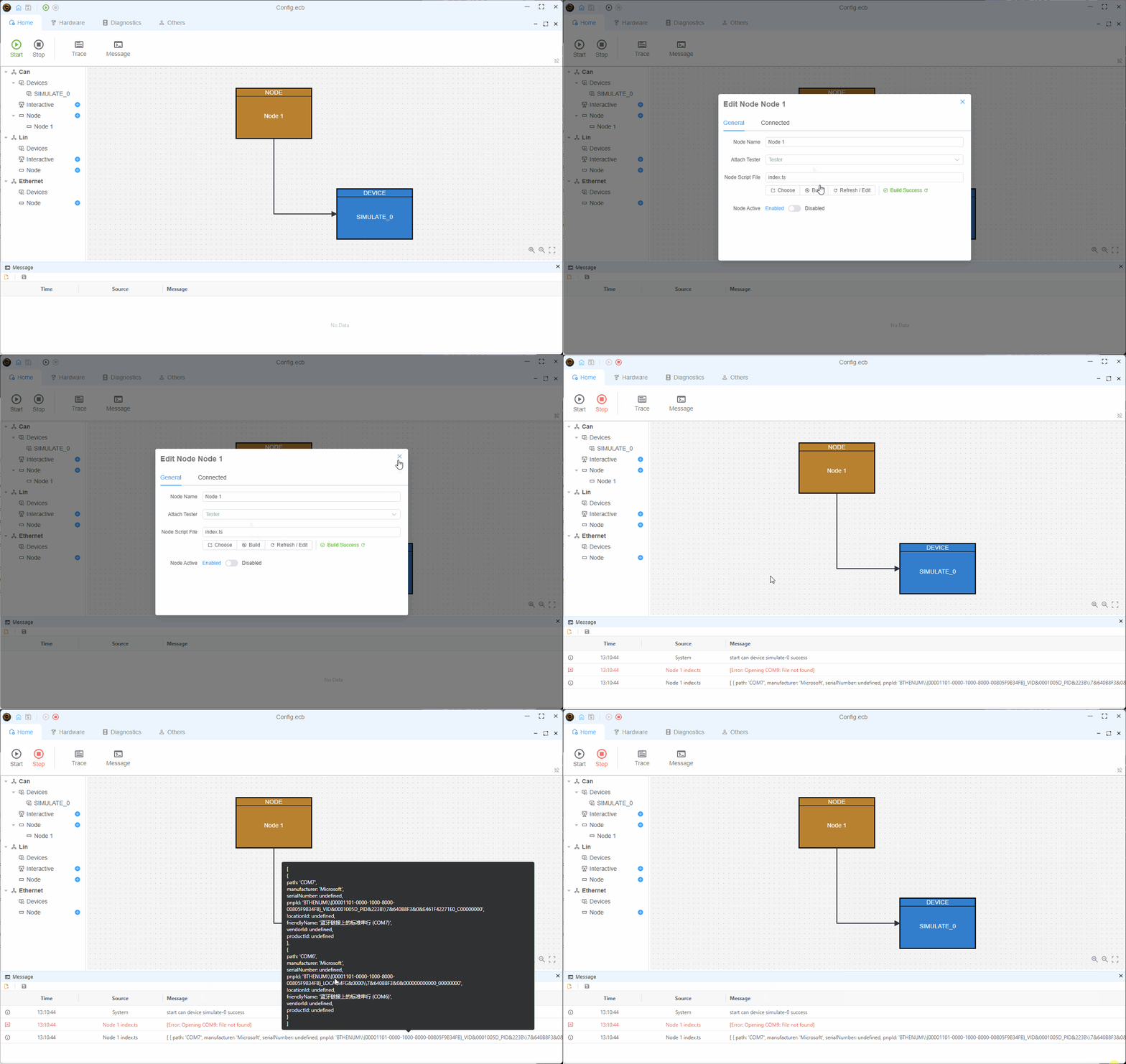
Here is an example of how to use the serialport package in your script. For more information about the serialport package, please refer to the serialport website.
Code Example
import { SerialPort } from 'serialport'
//open port with path and baudrate
const port = new SerialPort({
  path: 'COM9',
  baudRate: 57600,
  autoOpen: true
})
//get port list
SerialPort.list()
  .then((ports) => {
    console.log(ports)
  })
  .catch((err) => {
    console.error(err)
  })
Running Result